🔔 This page contains affiliate links and product references. As an Amazon Associate Hazard Sports will earn from qualifying purchases. This commission is at no extra cost to you. External links open in a new tab so you don’t lose your place. For more information visit our Legal and Privacy pages.
🔔 DiMy — Do-it-Myself: We share our experiences, not instructions. Do your own research first and use all the appropriate safety gear when working with tools, products, or riding motorcycles. Click here for more information.
THIS page is not for everyone!
This page is mainly for clients and followers who are interested in understanding our equipment and workflow. People starting out and looking to build their own workstation also tend to enjoy checking out other setups before building theirs. This page lets us share more detail about our current setup and future upgrades than we could ever fit into a video. Besides, I don't do tech videos, so this is where the numbers fly! All the "M.2_1 PCIe 5.0 x4, 16,000 MB/s" stuff is here on this page. I have to be in "tech mode" to enjoy this kind of information. When I'm in "creative mode," the computer stuff is a set-it-and-forget-it program running in the background. Part of having a good setup is trusting what you put together so you DON'T have to think about it while you're creating. If you're not in "tech mode" right now, you may want to come back to this page later. Don't say I didn't warn you!
The Heavy Lifter
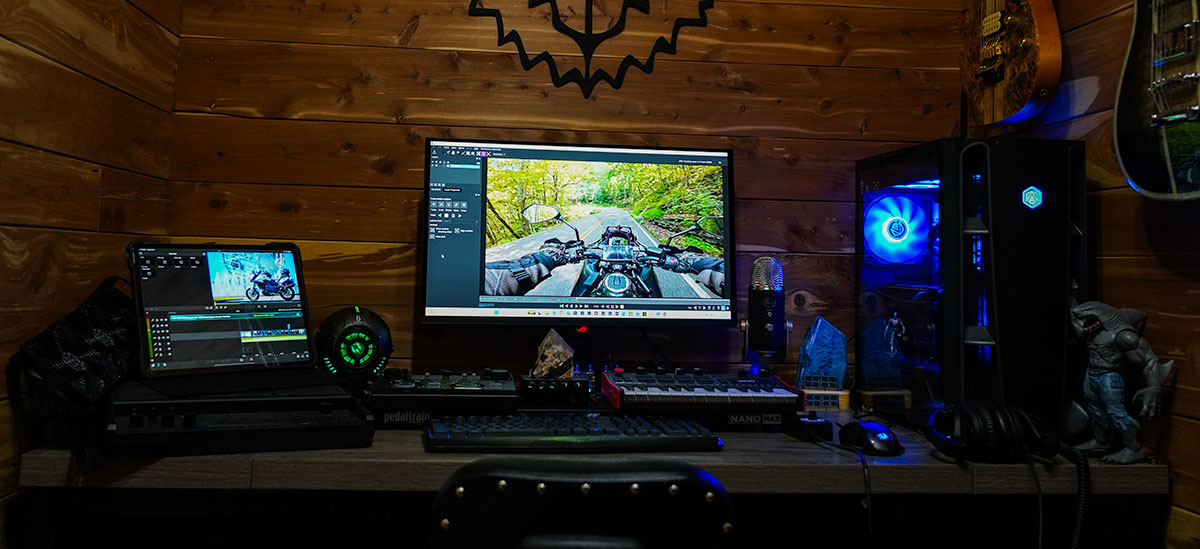
For many years, I have used Adobe products for video editing, photo enhancement, and visual effects. Plugins like Mocha and Element 3D are both useful and fun, and after working with Premiere and After Effects on both Mac and PC, I can't say that I have a preference between the two platforms. My current workstation is a 2026 Kaze II Aqua with an Intel Core Ultra 7 270K Plus, Asus Z890 Max Gaming WiFi7 motherboard, Gigabyte GeForce RTX 5070 Ti Windforce OC 16G, and 64GB of Kingston FURY DDR5 memory. Storage includes the onboard 2TB Teamgroup NV5000 NVMe SSD, a 2TB Samsung 990 Pro NVMe SSD, a 2TB Samsung 9100 Pro NVMe SSD, a 1TB OWC Mercury Extreme Pro 6G SSD installed on an OWC Accelsior S PCIe card, and a 2TB WD Purple hard drive. My primary display is an Asus ROG Strix OLED XG27UQDMS 27-inch 4K OLED monitor connected directly to the RTX 5070 Ti through HDMI 2.1.
Why the Core Ultra 7
The Intel Core Ultra 7 270K Plus turned out to be a particularly strong fit for video editing because it combines high clock speeds, 24 cores, and Intel Quick Sync acceleration for formats such as H.264 and H.265. Premiere Pro does not always scale proportionally with additional CPU cores, so moving to a higher-tier processor does not automatically mean smoother editing. In real content-creation workloads, the 270K Plus performs very close to higher-tier CPUs while delivering the responsiveness I was looking for.
Why the 5070 Ti
The NVIDIA RTX 5070 Ti 16GB hit the sweet spot for my 4K Premiere Pro, After Effects, Mocha Pro, and Element 3D work. The RTX 5080 offered more raw GPU performance, but it still had the same 16GB of VRAM while costing substantially more. Since 16GB already gives me plenty of headroom for the type of editing and VFX work I do, the 5070 Ti delivered the balance of performance, VRAM capacity, and value that made the most sense for this workstation.
Each Memory Device has a Job
The drives have separate roles within the editing workflow. Windows, Adobe, and the rendering software run from the 2TB Teamgroup NV5000, which is rated for sequential reads up to 5,000 MB/s. The 1TB OWC Mercury Extreme Pro 6G supplies the source footage at roughly 500 MB/s—far more bandwidth than the camera footage requires. The 2TB Samsung 990 Pro, rated for sequential reads up to 7,450 MB/s and writes up to 6,900 MB/s, occupies the motherboard's M.2 slot 2 PCIe 4.0 x4 slot and handles Adobe's high-speed cache, scratch files, previews, and finished renders. The M.2_2 communicates directly with the processor rather than through the Z890 chipset like M.2 slots 3 and 4, giving the dedicated work drive a direct CPU-connected PCIe path. The 990 performs almost to the maximum that the M.2_2 can support. This keeps the source footage on one drive, the operating system and applications on another, the cache and output workload on the fastest dedicated work drive and the long term storage on the slowest drive. The 2TB Samsung 9100 Pro NVMe SSD is in M.2_3 for temporary storage of large intermediate files needed to complete a project. With tasks routed out to the different drives, there is not much pressure being put on the main M.2_1 spot. So the 9100's endurance is best suited for this task for now. Once a project is complete, the finished files can be uploaded to social media or made available to the client, then moved off the work drive for long-term storage.
"Run what you Brung"
For long-term storage, I chose a Western Digital Purple Surveillance hard drive originally designed for security systems. This was a spare drive for our 7 camera perimeter security system. It was chosen for this task because it was available in the house and there was a HDD bay in the PSU compartment. So, making use of resources and space made it a "win / win". Unlike a typical desktop hard drive, the Purple series is engineered for continuous operation and sustained recording workloads where data is repeatedly written to the drive. In this workstation it serves a much less demanding role, storing completed projects after the active editing and rendering work is finished on the SSDs.
The sleeper drive.
The WD drive is not used every day and is mainly on standby. So, to further reduce unnecessary mechanical operation, I have Windows spin down the WD Purple after one minute of inactivity. This setting has little practical effect on the SSDs, which have no moving parts and automatically remain fully available at their normal performance whenever they are actively being used. On days when I am writing to the WD drive, I bump the spin-down timer up to 10 minutes. This is done in Windows 11 Home through Control Panel → Hardware and Sound → Power Options → Change plan settings → Change advanced power settings → Hard disk → Turn off hard disk after ______ minutes.
"The runner"
I also keep a second OWC Electra 3G SSD in an external enclosure for transferring temporary files across other devices.
Long Term External Storage
Most of my external long-term storage remains on traditional hard disk drives (HDDs). For large video archives, HDDs provide substantial capacity at a much lower cost per terabyte, and their slower transfer speeds are largely irrelevant once a completed project is being stored rather than actively edited. HDDs store data magnetically on physical platters, while solid-state drives (SSDs) store data as electrical charge in NAND flash memory. That gives HDDs an advantage for very long periods of unpowered storage because they do not depend on maintaining charge in flash cells, although this is much less of a concern for healthy SSDs that remain installed in a regularly used computer. SSDs have their own advantages: no moving parts, much greater speed, lower power consumption, and no mechanical spin-up or head wear. For long-term storage, neither technology eliminates the possibility of drive failure, so important files should always exist on more than one physical drive. For my purposes, HDDs remain a practical and economical choice for large archives, while SSDs are better suited to the high-speed working side of my editing system.
Upgrade Potential
The Asus Z890 Max Gaming WiFi7 gives me plenty of room to expand the workstation as my needs change. One upgrade already on my radar is replacing the original Teamgroup NV5000 system drive with a Samsung 9100 Pro. The motherboard's CPU-connected M.2_1 slot supports PCIe 5.0 x4 with up to 128 Gbps, or approximately 16,000 MB/s, of theoretical bandwidth. The Samsung 9100 Pro is rated for sequential reads up to 14,700 MB/s and writes up to 13,400 MB/s, allowing it to make much better use of that PCIe 5.0 interface. For now the TeamGroup drive is not under heavy pressure when performing long tracks in Mocha so it is performing just fine. This is partially due to software pagefile duties being sent to the 990. The Samsung 990 Pro will remain in M.2_2 as the dedicated Adobe cache, scratch, preview, pagefile and render drive. This also noticably sped Mocha up.
The motherboard also provides M.2_3 and M.2_4 for additional storage, along with four SATA 6Gb/s ports for SATA drives. The case adds two removable 2.5-inch SATA drive mounting plates behind the motherboard tray, in addition to the 3.5-inch drive cage currently holding the WD Purple. The motherboard actually gives me more storage capability than the case does, so I may run out of real estate before I run out of connections—which is a pretty good problem to have.
One issue I had right out of the gate was the memory. The system was advertised with 32GB of Kingston FURY DDR5-6400 (2×16GB), but it arrived with a differently spec'd G.Skill kit instead. The retailer was unable to send me the proper Kingston RAM without receiving the G.Skill sticks first. I couldn't go without the machine for a week or more, so I decided to have Amazon next-day-deliver an upgrade.
The original 32GB of RAM was restrictive when performing long tracks in Mocha, so the new factory-matched Kingston FURY Beast RGB 64GB (2×32GB) 6400MT/s DDR5 CL32 kit got me back in action quickly with a noticeable performance boost. An upgrade is always better than a side-grade. RAM is getting crazy expensive, so for now the 64GB will do; but, I eventually need to max out the board with 256GB. But that's a bit over budget for this machine right now.
The Editing Booth
My computer workstation has a very modest footprint. I cleared a large closet and put in a desk and a few fans. I cut a hole through the wall and mounted an 8-inch through-wall fan to help manage climate and humidity. The fan is mounted close to an HVAC vent, so the closet workspace stays at about the same climate as the main room. I also have a small ceiling fan and a HEPA filter to keep the air clean and circulating. All three stay on medium or low, which is more than sufficient for such a small space. We have had three of these HEPA filters in the house for a few years now. They are quiet, reliable, and effective. The filters are washable; however, I always have new filters on standby. These fans and filters are very important for keeping the room cool and comfortable. I really couldn't run the computer in such a small space without them. I would not call this an office because I do not work in there. This is where I set up a quick edit and let the machine run for hours to motion track and render large files. These renders take a long time, so to avoid unnecessary clutter in the main room, I let the desktop run in there.
The Cheap Laptop That Does Everything
I have a cheap Lenovo laptop computer that I spend most of my time with. I bought this back in 2019 when I needed a PC to run diagnostics and updates on the Mustang race car. I build all of my HTML pages and manage my social media accounts on it. For things like email and basic photo editing, you really don't need more than a basic computer. It's also nice to be able to work from any room for most of my computer work.
Editing on the Go
With the advancement of phone and tablet applications, I have added LumaFusion on iOS to my workflow. It is very convenient to have advanced features such as PaintX motion tracking on a portable device. This allows me to create content on the go. Whether curbside or at a destination, all I need is an action camera to film and a cellphone or tablet to edit. Everything is small enough to stuff in a pocket and rechargeable with a portable power brick. Having an iPad, action cameras, portable mics, Sony Alpha camera, motorcycle comms, and cellphone all chargeable by USB makes on-the-go production very convenient, especially for MotoVlog and Road Trip types of content.
What’s Up with the 3 Mice?
The three mice each have a specific job. The 12-button Redragon stays with the desktop for my main editing workstation. All of the shortcuts I use on a regular basis for the Adobe programs are at my fingertips. The simpler 2-button Redragon stays with the laptop and is used as an ordinary mouse. The wireless keyboard and mouse are paired with the iPad for a hybrid setup that speeds things up when an iPad edit gets a little deeper than originally planned. As you can see, I prefer corded mice to avoid the battery headache. The cordless setup for the tablet is just to keep things easy.
Keeping it Cool... and Dry.
For many years, I only had a laptop to render video edits on. One of the challenges was keeping it from overheating during long renders. I use a variety of cooling fans to help keep laptops and tablets cool, which can also help reduce processor thermal throttling. The three-fan external unit listed above is especially versatile. It works well for computing, but it also comes in handy when a water bottle randomly falls over on the ottoman. A steady fan helps evaporate the water that couldn't be mopped up. Ask me how I know.
BANG pOp fizZZz
There are certain sounds I never want coming from the editing workstation, and "Bang... pOp... FizzZZz" pretty much covers the list. With this much equipment plugged in, I like the idea of layered protection rather than trusting everything to one power strip. We have two main electrical panels bringing power into the house. The top two spaces in each panel are used by Siemens whole-house surge protectors, each rated for up to 140,000 amps of surge current. We also have high-saturation ferrites on the incoming lines, adding another layer against fast electrical transients before they make it deeper into the house. At the workstation, a surge-protected power strip adds point-of-use protection, while the BLUETTI AC180 brings 1,152Wh of battery capacity and UPS functionality to help prevent a sudden outage from crashing the system.
A sudden loss of power while the computer is actively editing, rendering, or writing files can mean lost work, corrupted project files, damaged cache or render files, and an operating system that never got the chance to shut down properly. The goal is simple: if the power disappears, I want enough time for the computer to keep running, save the project, and shut down normally instead of turning an ordinary outage into an expensive bad day... lost work, or expensive smoke.
There are two versions of the whole-house surge protector listed above. Siemens phased out the FS140 and replaced it with the FSPD140. Both carry a 140 kA surge-current rating. The FS140 units are currently installed, and I keep FSPD140 replacements stored in a Faraday bag as spares. Surge protectors are sacrificial devices: they divert damaging transient energy and can eventually wear out. After one severe surge event they are done. The Siemens units include status monitoring to indicate when protection is compromised and replacement is needed.
Chepaer than the alternative.
Yes, these things are expensive, but all together they are nowhere close to the price of a computer. On top of that take a tally of the cost of the the other appliances that would get damaged in the home. Central HVAC system, refridgerator, dish washer, clothes washer, dryer, televisions, motorcycles plugged into battery tenders, I'm sure we can keep going with this list. For me, it was a no-brainer to outfit the house with these units AND keep replacements on hand. If you are considering doing something similar, do a ton of research and make sure the installation is correct. Electrical-panel work is not the place for guessing. During my research, I came across expert installers pointing out improper whole-house surge protector installations performed by licensed professionals. That reinforced for me just how important proper installation really is. I am no electrician, so that's all I'm saying.
HazardSports Future Offerings
Beginning in mid-2027, we plan to offer video editing services for content creators. Our goal is to provide a streamlined, fully online workflow where project files can be securely exchanged, edits can be previewed and reviewed, revisions can be communicated, and completed projects can be delivered digitally. Additional information about available services, project requirements, pricing, turnaround times, and the submission process will be added as we get closer to launch.
Follow us as we continue developing the videography and creative side of Hazard Sports. Our main YouTube channel links below is where you will find our completed motorcycle videos and full edits. Our Hazard Sports Media channel takes you behind the scenes for a closer look at videography, video editing, content creation, visual effects, and prop creation. Join us in the comments to talk cameras, editing, creative techniques, and the process behind the finished videos. The social media links below connect to our main Hazard Sports channels.